FX Remote
The simplest way to harness the power of your Behringer or Midas digital mixer FX!!!
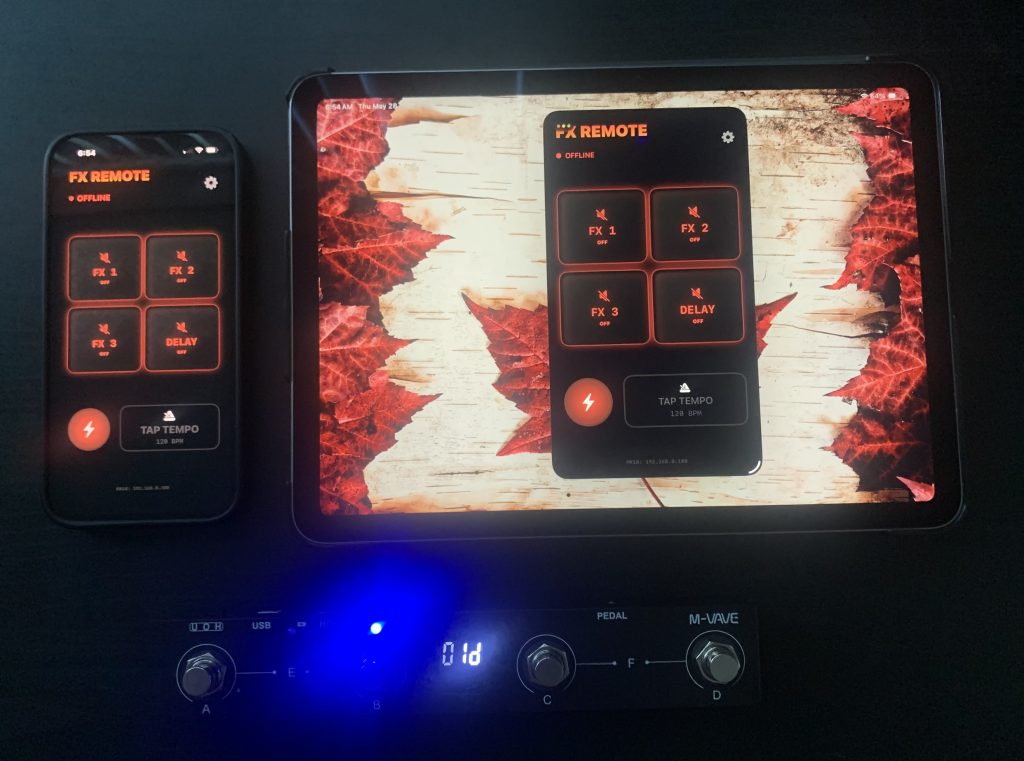
Now supports M-Wave Chocolate Plus wireless, battery-operated, MIDI footswitch/ foot controller. The easiest and the cheapest method (less than $50!!!) to add foot control to your Behringer XR18 and other Behringer and Midas digital mixers. Supports Behringer XR12, XR16, XR18, MR18, X32 and M32 models.
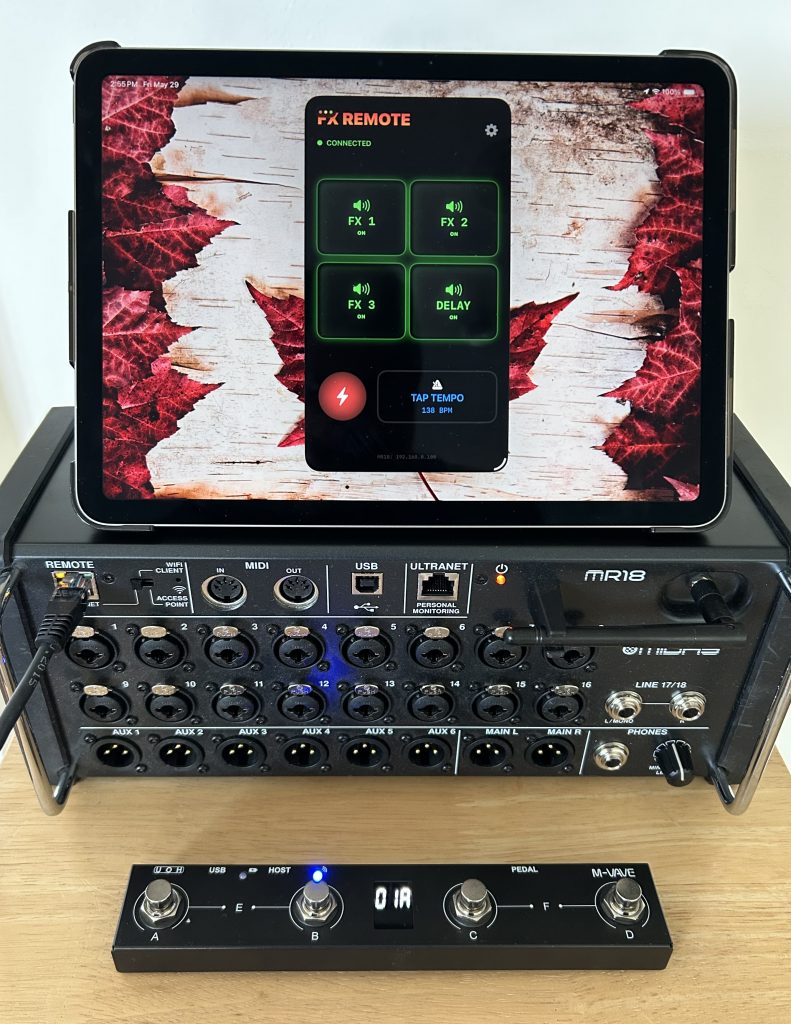
The fastest, most intuitive way to manage effects on your Behringer and Midas digital consoles.
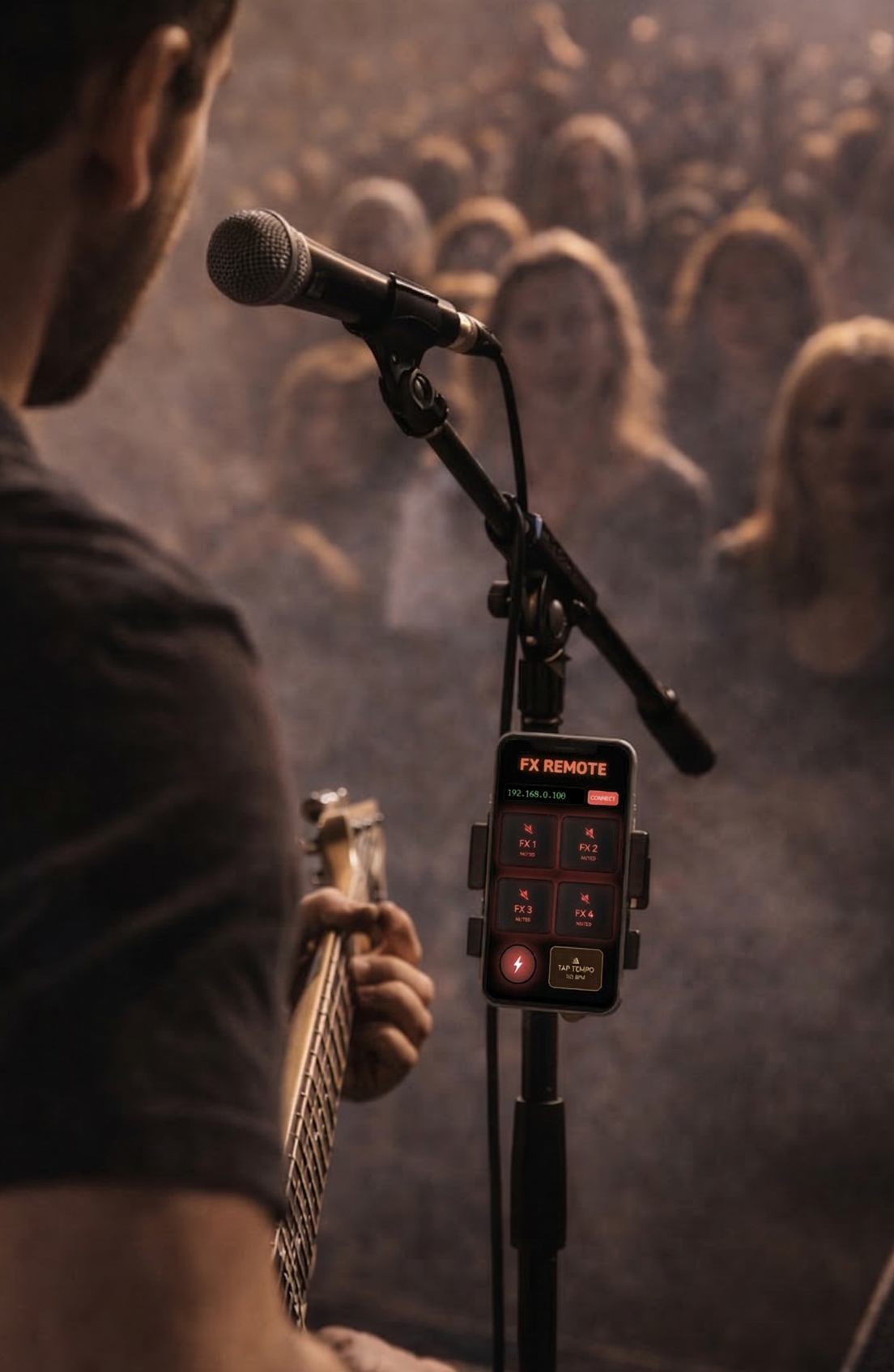
Live shows are chaotic, and getting the sound engineer’s attention mid-song to kill a heavy delay is almost impossible. FX Remote by SR Nix Corp puts the power back in the hands of the band. Designed with a rock-solid OSC wireless connection, it bypasses the complex menus of the existing mixing apps and gives you exactly what you need: instant, zero-latency control over your effects.
Why Your Band Needs FX Remote
- Democratized Mixing: Stop fighting for the sound engineer’s attention. FX Remote is simple enough that every band member can run it on their own phone, allowing the singer to mute their vocal delay between songs or the keyboardist to adjust their own reverb on the fly.
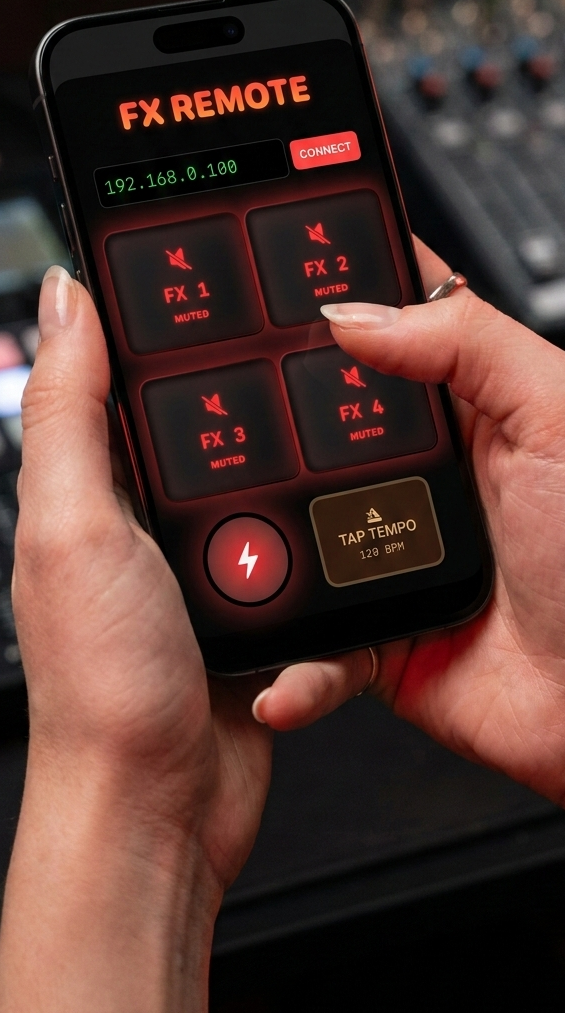
- The “Zero-Menu” Interface: FX Remote features a high-contrast, distraction-free layout with just 4 FX buttons and a massive Tap Tempo button.
- Wrist-Mounted Command: Keep your hands on your instrument. With full Apple Watch integration, you can tap in the tempo for a delay right from your wrist or instantly mute an effect.
- Universal Compatibility: Whether you are running a compact X-Air rack mixer for a pub gig or plugging into a flagship Midas M32 or Behringer X32 at a massive venue, FX Remote connects seamlessly.
- Rock-Solid Reliability: Built on the lightweight OSC protocol, the app communicates with your mixer instantly over standard Wi-Fi, ensuring your cues hit exactly when they need to, even on crowded 2.4GHz/5GHz stages.
- Own Your Gear (No Subscriptions): Hardware doesn’t charge you a monthly fee, and neither should your utility apps. FX Remote is a simple, one-time purchase. Buy it once, use it at every gig forever.
- Supports multiple windows on iPad. You can still see your charts and lyrics while the FX Remote is active.
Perfect For:
Sound Engineers: Give the band a safe, restricted app so they can tweak their own effects without accidentally ruining the main house mix.Build headers, footers, and blocks directly in the Editor.
Vocalists: Instantly mute heavy reverbs when talking to the crowd between songs.
Guitarists & Bassists: Sync delay tempos perfectly to the drummer without needing an extra footswitch.
Instructions
The first time you run FX Remote, a notification will be displayed requesting access to the LAN (local area network). The access must be granted, or the app will not be able to connect to your digital mixer. Please note that we do not collect or share any personal information from our users. There are no cookies or advertisements of any kind. Your privacy while using FX Remote is guaranteed.
1. Configure the Mixer’s Network Port
Behringer XR digital mixers have 2.4 GHz built-in Wi-Fi receivers; they should be hardwired to a wireless router for more reliable connections.
- For X32/M32: Press the Setup button, navigate to the Network tab using the page icons.
- For X-Air (XR12/XR16/XR18): Ensure the physical switch on the front is set to Ethernet (not Access Point) and LAN cable is connected to the external WIFI router (usually ports 1-4).
- Set Mode to DHCP: This allows your router to automatically assign an IP address to the mixer.
- Identify the IP: Once connected, the screen will display an address (e.g.,
192.168.0.100). Write this down.
2. Prepare the Wireless Router
The router acts as the bridge between your tablet/phone and the mixer.
- Placement: Place the router at “line of sight” or higher than the crowd to avoid signal interference.
- Band Selection: If your router supports it, use the 5GHz band. The 2.4GHz band is often overcrowded at venues, which can lead to lag or “frozen” faders in the app.
3. Link the App to the Mixer
- Join Wi-Fi: On your tablet or phone, go to Settings and join the Wi-Fi network created by your router.
- Open the App: Launch X32-Mix, X-AIR Edit, or Mixing Station.
- Enter the IP Address: * If the mixer doesn’t appear automatically in the “Search” list, look for the Connect or Settings menu.
- Manually type the IP address you noted in Step 1 (e.g.,
192.168.0.100).
- Manually type the IP address you noted in Step 1 (e.g.,
- Sync: Tap Connect. The app will prompt you to sync data (usually “Console to PC/Tablet”).
- After you confirm that the Main app for controlling the digital mixer is successfully connected, you can run FX Remote on the additional devices.
- In the settings of the FX remote app, select the type of the digital mixer you are trying to connect to.
- Enter the IP address previously recorded (e.g.,
192.168.0.100). - Rock on!
Quick Optimization Tips
- Static IP (Recommended for Pros): To prevent the address from changing mid-show, you can toggle the mixer from DHCP to Static once it has an address. This “locks” the IP so the app finds it instantly every time you power on.
- Avoid “Access Point” Mode: On X-Air mixers, the built-in “Access Point” is often unreliable in crowded rooms. Always use an external router via the Ethernet port for a stable professional connection.
Privacy Policy
Effective Date: March 21, 2026
SR Nix Corp (“we”, “us”, or “our”) built the FX Remote app as a commercial application. This SERVICE is provided by SR Nix Corp and is intended for use “as is.”
This page is used to inform website visitors and app users regarding our policies with the collection, use, and disclosure of Personal Information if anyone decided to use our Service.
1. Information Collection and Use
FX Remote does not collect, store, transmit, or share any personal information, user data, or analytics. The app functions purely as a utility tool to control digital audio mixing consoles. We do not require you to create an account, nor do we track your usage of the app.
2. Local Network Access
To function properly, FX Remote requires permission to access your local network. This permission is strictly used to send and receive Open Sound Control (OSC) data via UDP to your Behringer or Midas mixing console over your local Wi-Fi router.
- This data never leaves your local network.
- It is not sent to SR Nix Corp, Apple, or any third-party servers.
3. Log Data and Analytics
We do not use third-party analytics services or crash reporting tools that automatically collect data from your device.
4. Children’s Privacy
Our Services do not address anyone under the age of 13. Since we do not collect any personal data, we do not knowingly collect personally identifiable information from children under 13.
5. Changes to This Privacy Policy
We may update our Privacy Policy from time to time. Thus, you are advised to review this page periodically for any changes. We will notify you of any changes by posting the new Privacy Policy on this page. These changes are effective immediately after they are posted on this page.
6. Contact Us
If you have any questions or suggestions about our Privacy Policy, do not hesitate to contact us at info@srnix.com